

Checkly Agent Configuration
The Checkly Agent is a lightweight container that executes monitoring checks within your Private Location. This guide covers advanced configuration options, environment variables, security settings, and production deployment practices.Environment Variables
Configure your Checkly Agent using these environment variables:Essential Configuration
Network and Proxy Configuration
These proxy settings apply to agent management traffic to Checkly’s API. For check-specific proxy configuration, see the Proxy Setup guide.
Security and TLS Configuration
Production Deployment Examples
Docker with Resource Limits
Docker Compose
Systemd Service
Create/etc/systemd/system/checkly-agent.service:
Local Development Setup
For local testing and development, use Docker Desktop to bridge to localhost services:Agent Lifecycle Management
Monitoring Agent Health
Check agent status and logs:Agent Updates
Manual Updates
Automated Updates with Watchtower
Rolling Updates for Multiple Agents
API Key Management
Key Rotation Process
Rotate API keys regularly for security: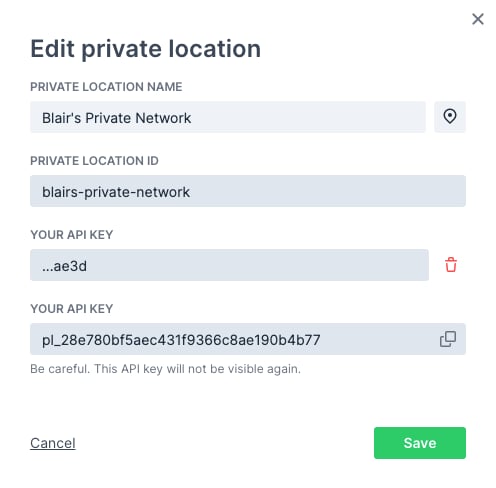
- Add second key in the Checkly UI
- Deploy new agents with the new key
- Verify connectivity of new agents
- Remove old agents using the old key
- Delete old key from Checkly UI

Zero-Downtime Key Rotation
Finding API Keys in Running Containers
Agent Versions and Runtime Compatibility
Each agent version supports a specific Checkly runtime:Version Pinning: Always pin specific agent versions in production. Use
checkly/agent:6.0.3 instead of checkly/agent:latest to ensure consistent behavior.Checking Runtime Compatibility
Troubleshooting
Agent Won’t Connect
Symptoms: Agent starts but doesn’t appear in Private Locations dashboard Solutions:-
Check API key: Verify the key is correct and hasn’t been deleted
-
Verify network access: Ensure outbound HTTPS to
agent.checklyhq.com -
Check proxy configuration: If using a proxy, verify settings
TLS Certificate Issues
Symptoms: SSL/TLS connection errors in logs Solutions:-
Add enterprise CA certificates:
-
Temporarily bypass TLS verification (not recommended for production):
Resource and Performance Issues
Symptoms: Slow check execution, out of memory errors Solutions:-
Optimize job concurrency based on available memory:
-
Monitor resource usage:
-
Check for memory leaks:
Check Execution Issues
Symptoms: Checks fail only from private location Solutions:-
Test network connectivity:
-
Check DNS resolution:
-
Enable OS DNS resolver for internal services:
Best Practices
Security
Security
- Pin specific agent versions in production
- Rotate API keys regularly (quarterly)
- Use secrets management for API keys
- Enable TLS certificate validation
- Monitor agent access logs
Reliability
Reliability
- Deploy at least 2 agents per location
- Use container restart policies
- Implement health checks
- Monitor agent connectivity
- Plan for rolling updates
Performance
Performance
- Right-size job concurrency for your workload
- Monitor memory usage patterns
- Use resource limits in production
- Scale horizontally when needed
- Profile check execution times
Operations
Operations
- Centralize logging and monitoring
- Automate agent deployment
- Document configuration decisions
- Test updates in staging first
- Maintain update procedures